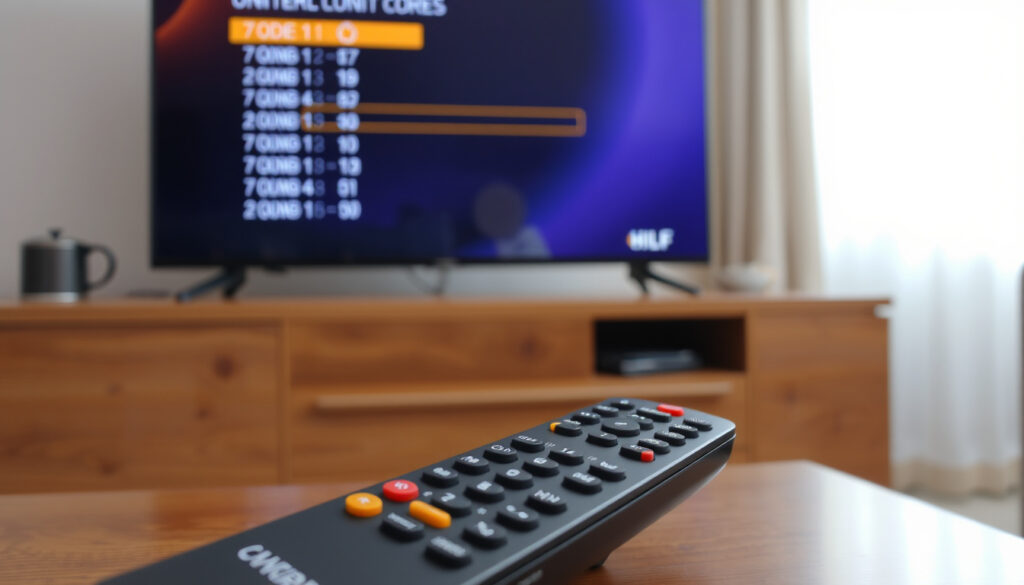
One For All Remote Codes: Program Your TV in Minutes
You’ve just bought a universal remote, and now you’re staring at a pile of code lists and buttons, wondering where to start. For One For All remote owners, programming doesn’t have to be a guessing game—this guide walks you through every method, from manual code entry to the Magic key code search, so you can get back to watching TV in under two minutes.
Supported TV brands: All major brands (1000+) · Code length: 3 or 4 digits · Setup methods: Manual code entry, code search, auto search · Average setup time: Under 2 minutes
Quick snapshot
- Find your device code from the list (One For All official code list)
- Press and hold the device key (One For All URC7555 manual)
- Enter the 3- or 4-digit code (same source) (One For All official code list)
- Press and hold the magic key until LED blinks (HiFi-Remote One For All programming archive)
- Point remote at TV and press POWER repeatedly (same source) (HiFi-Remote One For All programming archive)
- Stop when TV turns off (same source) (HiFi-Remote One For All programming archive)
- Press and hold the device key (One For All URC7555 manual)
- Press and hold the magic key until LED blinks (same source) (One For All URC7555 manual)
- Remote scans all codes automatically (same source) (One For All URC7555 manual)
- Visit the One For All website (One For All official support page)
- Enter your device brand and model (same source) (One For All official support page)
- Get the correct code instantly (same source) (One For All official support page)
Six key specs, one pattern: the entire programming ecosystem is designed around a small set of methods that work across hundreds of brands. Here’s a quick reference of what you’re working with.
| Spec | Value |
|---|---|
| Number of codes in database | Over 1000 |
| Supported brands | All major TV brands |
| Code length | 3 or 4 digits |
| Setup time | Under 2 minutes |
| Magic key | Yes, for code search |
| Manual available | PDF download on website |
How do I program my One For All remote to my TV?
Step-by-step programming guide
- Turn on your TV manually or using its original remote.
- Press and hold the device key (e.g., TV) on your One For All remote until the LED blinks twice and stays on.
- Enter the 3- or 4-digit code from the One For All code list. The LED turns off after the last digit.
- Test the remote: if it controls power and volume, you’re done. If not, try the next code for your brand from the One For All official code list (PDF).
The implication: manual code entry works best when you have the exact code. But if you don’t know your code or the list doesn’t include it, the Magic key method is your next move.
Using the code list
One For All publishes brand-to-code mappings for each remote model. The code list shows multiple codes per brand in many cases—for example, Samsung may list five or more different 3-digit or 4-digit codes. Try the first code listed; if it doesn’t work, move to the next.
A single TV brand can have numerous codes. The One For All streamer remote codelist shows dozens of entries per brand, meaning you may need to test a few before landing on the right one. Patience pays off.
Using the magic key
On older One For All remotes, the Magic key (often labelled MAGIC or SETUP) is the gateway to code search. The URC7555 manual (One For All product documentation) describes the process: press and hold the device key, then press and hold the Magic key until the LED flashes twice. Release both. Then press POWER repeatedly while pointing the remote at the TV. The remote will cycle through its built-in code database—the manual warns that you may need to press the search key up to 150 times. When the TV turns off, press Magic to store the code.
For newer models without a dedicated Magic key, the same function is often accessed by pressing and holding the device key and OK/M buttons. Check your specific remote’s manual.
The Magic key is the fallback when code lists fail. One For All’s own documentation confirms that code search can require many presses, but it’s the most reliable way to find a working code for any brand—even obscure TV models.
How do I find my One For All remote code?
Using the online code finder
One For All’s website provides a search tool where you enter your TV brand and model number. The tool returns the correct code instantly. This is often faster than flipping through a PDF list. Head to the One For All support page (official manufacturer support hub) and look for the code finder under your remote model.
Checking the battery compartment
Your One For All remote’s model number is printed inside the battery compartment—usually on a white sticker or embossed on the plastic. Write it down. With that model number, you can download the exact code list from the One For All code list archive.
Using the code list PDF
Direct download links to code lists are available for many models. For example, the URC-7960 code list PDF (One For All official documentation) contains brand names, code lengths (3-digit or 4-digit), and multiple codes per brand. Search for your brand using the PDF’s find feature (Ctrl+F).
The implication: having the PDF handy speeds up code entry, especially when you need to try multiple codes for a single brand.
How to program a One For All remote without codes
Using the auto search method
If you don’t have a code at all, the auto search function scans every code in the remote’s database for you. The URC7555 manual (One For All user guide) explains: press and hold the device key, then press and hold the Magic key until the LED blinks twice. The remote will begin transmitting every code in sequence every few seconds. When the TV turns off, press the Magic key to lock in the code.
This method can take a few minutes—the manual notes you may need to wait through many codes—but it’s the ultimate fallback when no code is known.
Some older One For All remotes require up to 150 presses in code search mode, per the URC7555 manual. If you’re using auto search, be patient and keep the remote pointed at the TV.
Using the magic key
Already covered in the previous section, but worth reiterating: the Magic key is the same button used for code search. The process is identical whether you’re searching manually (pressing POWER repeatedly) or letting the remote auto-scan. The key difference: manual search gives you control over pacing, while auto search runs hands-free.
Troubleshooting
- Remote doesn’t respond: Replace batteries. Check that you’re within 15 feet of the TV and pointing directly at the IR sensor.
- Code search never finds a code: Some TV brands use proprietary IR protocols that One For All remotes cannot reproduce. The URC2981 support page (URC Support – OFA product resource) warns that certain manufacturer remotes use IR protocols that the One For All remote cannot learn or mimic.
- LED blinks once long: According to the URC2981 support page, one long blink means the remote did not capture the signal correctly. Try again with better alignment.
- Two long blinks: The memory is full. The remote can only store a limited number of learned functions—the URC2981 support page states the remote can learn up to 50 functions. Delete unused ones to free space.
- RF remotes cannot be learned from: The URC2981 support page clarifies that radio-frequency (RF) remotes aren’t infrared-based and cannot be used for learning.
Confirmed facts
- One For All remotes work with all major TV brands (One For All official code list)
- Code lists are available on the official website (One For All URC7555 manual)
- Magic key initiates code search (HiFi-Remote – One For All programming archive)
What’s unclear
- Exact number of codes in the database—One For All claims over 1000 but doesn’t publish a full count
- Compatibility with very old or obscure TV models—some IR protocols may not be supported (URC2981 support page – protocol limitations)
- The exact number of codes per brand is not always documented (One For All streamer remote codelist page)
You may have to press the search key up to 150 times.
— One For All URC7555 manual (official product documentation)
One long blink indicates the remote did not capture the signal correctly.
The remote is guaranteed to work with all brands.
— One For All official support (manufacturer’s website)
When standard codes fail—and they will for some niche or older models—the Magic key and code search methods are your lifeline. For the average TV owner, the choice is clear: use the online code finder first, then fall back to manual code search. For owners of very old or obscure sets, resetting the remote and trying a learning function may be the only path. One For All’s ecosystem covers almost every scenario, but you still need to know which button to press when the first code doesn’t work.
For a more detailed walkthrough on programming a universal remote, you can refer to a comprehensive step-by-step guide that covers both manual entry and automated scanning methods.
Frequently asked questions
What is the magic key on my One For All remote?
The Magic key is a dedicated button (often labelled MAGIC or SETUP) used to enter programming mode on older One For All remotes. Newer models may combine its function with the device key and OK button. The HiFi-Remote archive (One For All programming documentation) confirms its role in initiating code setup.
How do I reset my One For All remote?
Resetting clears all programmed codes and learned functions. The exact steps vary by model, but a common method: press and hold the device key and MUTE simultaneously until the LED blinks twice. Release, then enter 9-8-1. The LED blinks twice to confirm reset. Check your model’s manual for specifics.
How do I find the model number of my remote?
Look inside the battery compartment—the model number is printed on a sticker or embossed on the plastic. Note it down to download the correct code list from the One For All support page (official product support).
What do I do if my remote doesn’t work?
First, replace batteries and check alignment. If code entry fails, try the code search method using the Magic key. If that doesn’t work, the remote may not support your TV’s IR protocol—the URC2981 support page notes that some manufacturer remotes use protocols the One For All cannot reproduce. In that case, see if your remote supports learning functions from the original remote.
Can I use my One For All remote with multiple devices?
Yes. Most One For All remotes support multiple devices (TV, DVD, soundbar, streaming box). You can program each device to a dedicated key (e.g., TV, DVD, AUX) using the same code-entry or code-search process.
How do I program my remote for a different TV?
Simply repeat the programming steps for the new TV: press and hold the TV device key, then enter the correct code from the list or use the Magic key code search. The new code overwrites the previously stored one for that device key.
Where can I download the manual?
One For All provides PDF manuals for most models on its official support page (manufacturer documentation archive). Search by remote model number to find the exact guide.
More related posts
 Man City vs Newcastle – Kick-Off Lineups Prediction Odds
 School Bags for Girls: Top Brands and Local Buying Tips
 What Time Does Warehouse Close? Hours & Policies
 Air NZ Arrivals Wellington: Live Status Today
 Rangiora Eco Holiday Park: Rates, Reviews & Location
 Brentford vs Man United 2026: Head-to-Head Record, Stats & Preview
 How to Screenshot on a Laptop: All Methods for Windows and Mac
 Where to Watch Tina Movie NZ on Netflix, Prime, Angel
