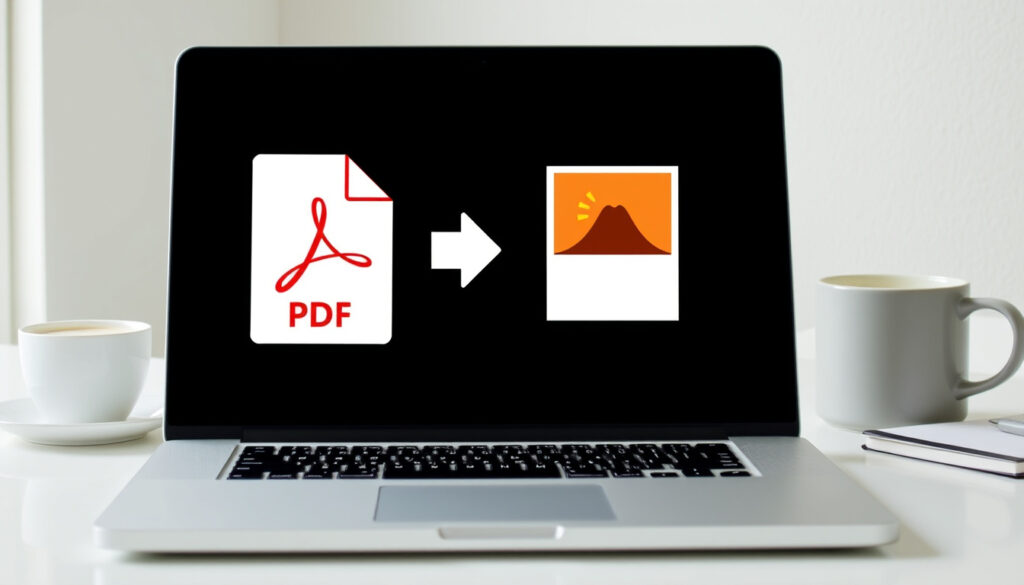
Convert PDF to JPEG Free: Best Online Converters & Guide
Picture this: a file lands in your inbox as a PDF, but the slide deck, product listing, or group chat needs a JPG. That’s the moment most people search for “convert pdf to jpeg” and hope for a quick answer — and Adobe Acrobat isn’t required: Foxit’s browser converter is free with no account (Foxit), and most of the tools below work the same way.
Top free PDF to JPG converters: iLovePDF, Adobe Acrobat, Smallpdf, Canva ·
Supported output formats: JPG, JPEG, PNG, WEBP ·
Free conversion limit: often up to 100 MB or 15 pages per file
Quick snapshot
- Smallpdf converts full PDF pages for free; extracting embedded images is a Pro feature (Smallpdf).
- PDFgear converts without software installation or an email sign-up (PDFgear).
- FreeConvert runs on Windows, Mac, Linux, Chrome, Edge, and Firefox (FreeConvert).
- How much compression each free tier applies to image quality.
- Exact file-retention and privacy policies on ad-supported converters.
- Whether free cloud-saving options delete your files after download.
- 2008 — iLovePDF launches (iLovePDF), helping popularize free PDF-to-JPG tools.
- 2015 — Smallpdf adds its PDF to JPG converter (Smallpdf).
- 2020 — Adobe launches a free online PDF-to-JPG converter (Adobe Acrobat).
- More cloud-save and batch-extraction features will move behind paid plans.
- Privacy will become the battleground as free tiers tighten their limits.
- The free tier that works today may shrink within a year — check limits before you upload.
Nine data points, one pattern: free PDF-to-JPG tools are generous until they aren’t — accounts, page caps, or file ceilings appear right when the document matters.
| Category | Detail |
|---|---|
| Popular converter | iLovePDF — over 40 million conversions per month, up to 15 pages per file free (iLovePDF) |
| Output formats | JPG, PNG, WEBP on most tools; Adobe adds TIFF |
| Best for privacy | Adobe Acrobat, with enterprise-grade security positioning |
| Import sources | Convertio accepts Computer, Google Drive, Dropbox, or URL (Convertio) |
| File-size ceiling | Coolutils converts up to 50 MB with no signup, no email (Coolutils) |
| Browser reach | Zamzar’s converter works through any internet browser (Zamzar) |
| Output delivery | PDFgear packages your JPGs in a ZIP file (PDFgear) |
| Scanned PDFs | Image-only PDFs convert the same way — each scanned page becomes a JPG |
| Free tier pattern | The bigger the brand, the tighter the free cap |
How can I convert a PDF to JPG for free?
The core flow is identical across the four big free tools: upload a PDF, choose JPG output, download the images. They differ in account walls, page caps, and what happens to the file afterward.
Using ilovepdf.com
- No sign-up required for free conversions, and batch conversion is built in (iLovePDF).
- Each page is exported as a separate JPG, delivered in a ZIP.
- Go to ilovepdf.com and open the PDF to JPG tool.
- Drag your PDF into the upload area.
- Choose “Convert entire document” or “Extract images.”
- Click “Convert to JPG,” then download the ZIP.
The whole loop takes about 20 seconds — no account wall, no software, no “try our desktop app” popup before you get your files.
Using Adobe Acrobat online
- Output options include JPG, PNG, or TIFF, and the free tier caps at 10 pages per month (Adobe Acrobat).
- Open Adobe’s PDF-to-JPG converter.
- Select your file.
- Choose JPG (or PNG/TIFF).
- Click Convert.
- Download the result, or sign in to share it.
Adobe’s converter is the one to reach for when a sensitive file needs a familiar corporate name behind the upload box.
Using Smallpdf
- Converting full pages is free; extracting the images embedded inside a PDF is a Pro feature.
- The free plan caps conversion at 2 pages per day.
- Go to smallpdf.com/pdf-to-jpg.
- Upload or drag your PDF.
- Choose “Convert entire pages.”
- Download the JPGs or save them to cloud storage.
Smallpdf’s interface is the cleanest of the four, but the daily page cap makes it a single-document tool, not a workflow.
Using Canva
- Requires an account, adds a watermark on the free plan, and treats JPG/JPEG as one format (Canva).
- Sign in at canva.com/features/pdf-to-jpg-converter.
- Upload your PDF.
- Let Canva split the pages into design elements.
- Download the result as a JPG.
Canva wins when “convert” really means “open in a design tool” — you get the JPG plus the ability to keep editing the layout.
What is the best PDF to JPG converter?
Six converters, one pattern: the more polished the interface, the tighter the free cap. This comparison shows which tool fails last, not which one has the best branding.
Feature comparison: ilovepdf, Adobe, Smallpdf, Canva
The following table compares free limits, account requirements, and output formats across the most popular tools.
| Converter | Free limit | Account needed | Output formats | Standout |
|---|---|---|---|---|
| iLovePDF | Up to 15 pages per file (iLovePDF) | No | JPG, PNG, WEBP | Batch conversion and image extraction |
| Adobe Acrobat | Up to 10 pages per month (Adobe Acrobat) | Only to save or share | JPG, PNG, TIFF | Enterprise-grade security positioning |
| Smallpdf | 2 pages per day (Smallpdf) | Not for basic conversion | JPG | Cleanest interface, cloud saves |
| Canva | Watermark on free plan (Canva) | Yes | JPG | Converts PDF into editable design |
| Foxit | Free, no account (Foxit) | No | JPG per page | Simplest no-account workflow |
| Coolutils | Up to 50 MB per file (Coolutils) | No signup or email | JPG | Highest no-signup file ceiling |
Foxit and Coolutils are in the same table as no-account reference points — they trade page caps for file-size caps.
Free converters save you money in exchange for your time: page limits, watermarks, and ZIP round-trips cost a few minutes per document. For a single page that’s nothing; for a 60-page deck, the paid plan is cheaper than the friction.
Output quality and file size limits
- Free tiers render each page as a JPG that looks like the printed page.
- Compression settings are rarely documented on free plans.
- Resolution is usually screen-grade, not print-grade.
For emails, slides, and web uploads, the output quality is fine. Print work is where free tools disappoint: they optimize for file size rather than detail.
What this means: if a converted JPG looks soft, it’s not your eyes — the converter optimized for the web, not for paper.
Ease of use and speed
- Fastest flow: iLovePDF — drag, drop, download.
- Most guided interface: Smallpdf.
- Broadest device support: the browser itself — no installs needed on Windows, Mac, or Linux.
- Most flexible output: Adobe (JPG, PNG, or TIFF).
The speed difference between these tools is negligible — every one converts a single page in seconds. What differs is the number of clicks before you get the ZIP file.
How to turn PDF into JPG without Acrobat?
You don’t need Acrobat — not the desktop app, not the subscription. The browser has done this job for years, and the tools below make the process shorter than reading an install wizard.
Using free online converters
- PDFgear converts PDFs without software installation and without an email sign-up (PDFgear).
- Foxit’s web tool is free and needs no account (Foxit).
- Everything runs in the browser — close the tab and the converter is gone.
The browser path is the simplest: open the tool page, upload, convert, download. If it works in a browser, it works on Windows, Mac, Linux, Chromebooks, and most tablets.
The pattern: the best “without Acrobat” tools are the ones that give you a URL, a button, and nothing to install.
Using mobile apps (Android/iPhone)
- iPhone: browser-based converters work everywhere — Zamzar works through any internet browser (Zamzar).
- Android: the same browser tools work, and a free dedicated converter app is available from the Play Store.
- iPhone Files app: it can preview PDFs, but exporting JPGs still needs a converter page or a shortcut.
On a phone, stick to the Files app: upload the PDF from Files, convert on a reputable tool page, and save the JPG back to Files. No app clutter, no permissions to review.
Why this matters: mobile conversion is a solved problem — a converter tab in your bookmarks removes the “need an app” reflex entirely.
Using desktop software (Windows/Mac)
- Browser tools like FreeConvert work on Windows, Mac, Linux, Chrome, Edge, and Firefox (FreeConvert).
- macOS Preview can export PDF pages as JPEGs without any third-party tool.
- Windows users get the same browser flow — no Acrobat install needed.
If you convert PDFs a few times a year, an online tool is the rational choice. If you convert them daily, a desktop editor like Acrobat Pro is worth the money — but the “no Acrobat” path handles most casual needs without an install process.
The takeaway: for the number of times most people actually convert a PDF to JPG, installing nothing is the smart move.
Why can’t I convert my PDF to JPG?
A failed conversion usually has a boring, fixable cause. Work through this list before you blame the website.
Common issues: encrypted PDF, large file size, unsupported format
- Encrypted PDFs — password-protected files are rejected by most converters until the password is removed.
- Oversized files — free tiers enforce hard ceilings; Coolutils, for one, stops at 50 MB (Coolutils).
- Free-tier page caps — a 20-page PDF will fail on a tool that budgets pages per day.
- Browser or network issues — old browsers or corporate proxies can silently kill large uploads.
Most “why won’t it convert” moments are a file-size or page-count problem wearing a technical disguise.
Solutions for each problem
- Locked PDF: save an unlocked copy first, then upload — most PDF editors can strip the password.
- Large file: compress the PDF or split it into smaller documents before converting.
- Page cap: split the PDF into smaller files, or use a tool with a bigger per-file allowance.
- Browser issue: retry in Chrome, Edge, or Firefox — FreeConvert lists all three as supported (FreeConvert).
Scan-heavy PDFs are the exception: they’re already images, so each scanned page becomes a JPG with no extra fixing required.
When to use a paid converter
If you convert more than a handful of pages a week, free tiers will fail you at the worst possible moment. A paid plan — Smallpdf Pro or Adobe Acrobat Pro — removes page caps and image-extraction limits entirely.
The honest rule: free tools are for infrequent, forgiving files. Contracts, books, and high-res print work justify the subscription.
The pattern: “why can’t I convert?” is usually a limit, not a bug — and limits are the one thing free tiers never show you in advance.
Which PDF converter is actually free?
There are two kinds of free in this market: genuinely free with a file ceiling, and free-until-you-need-the-feature. The honest list is shorter than the search results suggest.
Truly free converters with no hidden costs
The tools with the least marketing — Foxit, PDFgear, and Coolutils — are the ones that make the fewest demands: no account, no email, no software.
Foxit’s web converter is the cleanest no-account example: open the page, convert, download. PDFgear makes the same promise without an email sign-up, and Coolutils keeps a 50 MB ceiling in the free lane.
The honest take: “truly free” should mean no account and no credit card — and in this category, it always comes with a file ceiling that isn’t advertised loudly enough.
Freemium models and page limits
- Adobe: the free tier converts up to 10 pages per month (Adobe Acrobat).
- Smallpdf: the free plan converts 2 pages per day.
- Canva: free conversion works, but the output carries a watermark.
- iLovePDF: free and no sign-up, with a per-file page cap.
Every one of these limits is a product decision: the free tier exists to show you the paid one. Brands with bigger marketing budgets tend to ship tighter caps.
The implication: read the cap before you upload, not after the converter refuses the file.
Privacy considerations
Uploading a signed document to a no-name converter is a risk no page limit justifies. Adobe’s Acrobat infrastructure is the safest place among the big four to let a confidential file pass through.
Before uploading anything sensitive, check whether the tool has a stated privacy policy and a file-deletion schedule. The tools that brag about “no sign-up” may not be the tools that brag about data retention.
The trade-off is yours to name: convenience at the price of privacy, or a short account setup for a tighter data promise.
Confirmed facts and open questions
After cross-checking the tool pages, some things are solid — and some things the free tools simply don’t tell you.
Confirmed facts
What’s unclear
- How much compression each converter applies to image quality.
- Exact file-retention and privacy policies on ad-supported tools.
- Whether “free forever” tiers will stay free as running costs rise.
- How scanned multi-page PDFs are downscaled on different free tiers.
The pattern: what’s confirmed is what the tools want you to know; what’s unclear is exactly what you’d need to choose wisely.
What the converters say about their own limits
Two product statements — one about access, one about format — capture how the tools themselves frame the conversion process.
“Free to use. No account required.”
— Foxit, online converter product page
“JPG and JPEG are the same image format, with the difference being only the filename extension.”
— Canva, PDF-to-JPG converter documentation
What this means: the fewest promises make the best guides — Foxit’s no-account line and Canva’s format clarification are more useful than any “best-in-class” marketing claim.
The takeaway
Free PDF-to-JPG conversion works, up to a point — and that point is measured in pages. The tools above are capable, but every free tier is calibrated to push you toward a subscription. For anyone converting PDFs more than a few times a week, the choice is clear: keep one free tool bookmarked for quick jobs, and move to a paid plan such as Smallpdf Pro or Adobe Acrobat Pro before a deadline forces the decision.
Frequently asked questions
Is it safe to use online PDF to JPG converters?
For everyday files, the risk is low, but you are uploading data to a third-party server. For signed or personal documents, prefer a provider with enterprise-grade security, such as Adobe Acrobat’s online converter, and delete the file from the tool after conversion.
Can I convert multiple PDF pages to JPG at once?
Yes. Most converters turn each page into its own JPG and package the images in a ZIP file for download. Both iLovePDF and Smallpdf follow this flow, and the page order stays intact.
What is the difference between JPG and JPEG?
None in practice. They are the same image format; the only difference is the filename extension.
Do I need an account to convert PDF to JPG?
Not for the tools that advertise no-account conversion, such as Foxit and PDFgear. Adobe only asks you to sign in if you want to save or share the converted file.
Will the JPG quality be the same as the original PDF?
Usually not identical. Free converters render each page as an image and apply compression, so results are fine for screens and slides but may disappoint for print. Test one page before converting a long document.
Can I convert a scanned PDF to JPG?
Yes. A scanned PDF is already a set of images, so each scanned page becomes a JPG when you convert it. No OCR step is required.
How large can a PDF be for free conversion?
It varies by tool: Coolutils accepts files up to 50 MB, Smallpdf’s free plan converts 2 pages per day, and Adobe’s free converter caps output at 10 pages per month.
More related posts
 Polo Ralph Lauren NZ: Stores, Sales, Perfume & Caps
 School Bags for Girls: Top Brands and Local Buying Tips
 iPhone 13 Case NZ: Best Options & Where to Buy in 2026
 Early Stages of Scabies: Symptoms, Treatment & Key Facts
 10 Year Wedding Anniversary: Traditions, Gifts, What to Expect
 Australia vs South Africa Cricket 2026: Schedule & Guide
 Rest Home Near Me: Costs, Options & How to Choose in Ireland
 Ukraine Military News Today: Latest Updates and Analysis
