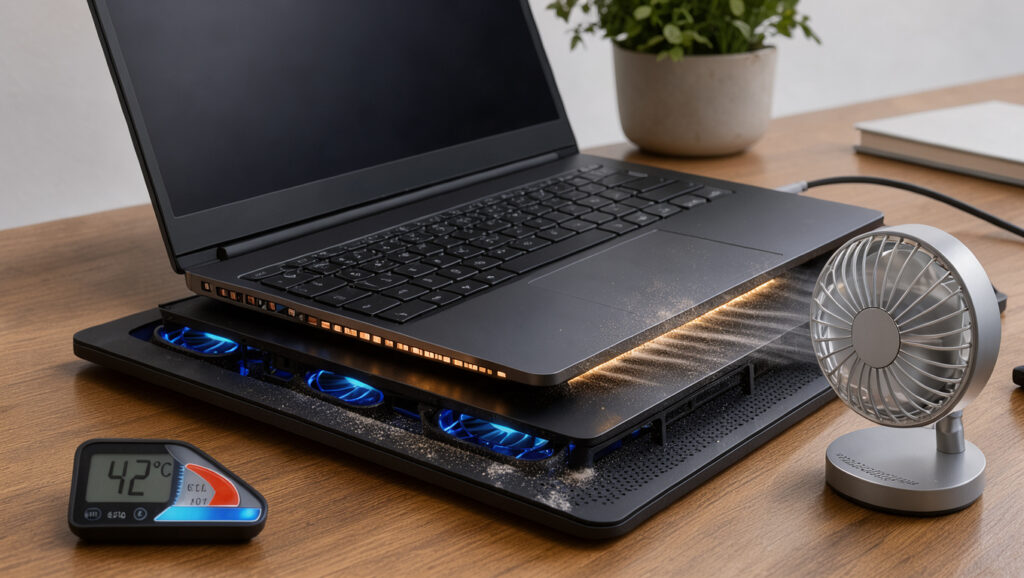
How to Fix Laptop Overheating: Causes, Fixes, and Safe Limits
Few things are more unsettling than a laptop that turns scorching on your lap or shuts off in the middle of an email. Most overheating cases come down to a short list of causes, and the fixes work best in a set order.
Heavy-load core temperature: often up to 85 °C (Asurion (consumer tech service)) · Dell room ceiling: 35 °C (Dell Support (manufacturer documentation)) · Cool-down rest: 15 to 20 minutes (Asurion (consumer tech service))
Quick snapshot
- Blocked vents restrict airflow and can overheat the processor and memory (Dell Support (manufacturer documentation)) (Microsoft Surface (manufacturer guidance))
- Laptops should sit on a hard, flat surface with ample airflow (Microsoft Surface (manufacturer guidance))
- Internal temperatures above 35 °C (95 °F) raise the damage risk (HP Support (manufacturer documentation))
- The temperature gain from any specific cooling pad model, since none of the sources measured one
- Model-specific temperature limits, which sit in each user guide (Dell Support (manufacturer documentation))
- Whether 90 °C is safe for a given CPU, since the typical heavy-load figure is up to 85 °C (Asurion (consumer tech service))
- Dell’s overheating troubleshooting guide is dated (Dell Support (manufacturer documentation))
- Asurion’s causes-and-fixes guide is dated (Asurion (consumer tech service))
- Dell’s first-line fixes start with vent cleaning, then power settings, drivers, and BIOS (Dell Support (manufacturer documentation))
- If overheating persists, HP advises updating the BIOS and switching to the Balance power scheme (HP Support (manufacturer documentation))
Eight reference points, one pattern: Dell’s 35 °C room ceiling and HP’s 35 °C internal threshold sit on the same number, so ambient heat and chassis heat hit the same warning line.
| Fact | Value |
|---|---|
| HP internal temperature damage-risk threshold | Above 35 °C (95 °F) (HP Support (manufacturer documentation)) |
| Intel maximum junction temperature | 100–110 °C, varies by product (HelpByExperts (editorial troubleshooting guide)) |
| Typical heavy-load core temperature | Often up to 85 °C (180 °F) (Asurion (consumer tech service)) |
| Dell recommended operating room temperature | 0 °C to 35 °C (32 °F to 95 °F), humidity no greater than 90% (Dell Support (manufacturer documentation)) |
| Dell first-line fixes | Six listed fixes, starting with vent cleaning (Dell Support (manufacturer documentation)) |
| Unpowered rest on a hard, flat desk | 15 to 20 minutes (Asurion (consumer tech service)) |
| Minimum cool-down before troubleshooting | At least five minutes after shutdown and unplugging, according to Techdows (tech troubleshooting blog) |
| Clearance around each vent | At least 15.25 cm (6 in) (HP Support (manufacturer documentation)) |
How to fix laptop overheating problems?
Start with the checks that cost nothing. Dell’s first-line fixes run in a clear order: clean the air vents, review power plan settings, update drivers and BIOS, install Windows updates, check the thermal profile, and run the fan test (Dell Support (manufacturer documentation)).
- Shut the laptop down, unplug the charger, and remove USB accessories or docking stations. Then rest it unpowered on a hard, flat desk for 15 to 20 minutes (Asurion (consumer tech service)).
- Clear each vent and fan intake, and keep at least 15.25 cm (6 in) of clearance around each vent (HP Support (manufacturer documentation)).
- Switch Windows to a balanced power mode. According to Laptop Outlet (UK retailer blog), Balanced mode is the first setting to try when performance drops or the machine shuts down.
- Set the thermal profile. Dell’s Thermal Management option in BIOS can be set to Balanced, Quiet, Optimized, or Cool where available (Dell Support (manufacturer documentation)). Asurion recommends the maker’s app, such as Dell Power Manager, Lenovo Vantage, MyAsus, or HP Command Center, to move from Performance or Turbo to Balanced or Quiet/Eco (Asurion (consumer tech service)).
- Update the BIOS and drivers, then install pending Windows updates (Dell Support (manufacturer documentation)).
- Run the fan test. On Dell systems, restart, press F12 at the Dell logo, choose Diagnostics, then ADVANCED TEST, and select the fan tests with Thorough testing (Dell Support (manufacturer documentation)).
A cooling pad comes last in this sequence, not first. Dell starts with what sits inside the chassis, including vents, power settings, and firmware, so an accessory can only treat the symptom until those checks are done (Dell Support (manufacturer documentation)).
Shut down fully instead of using Sleep
- When the machine is hot, shut it down, unplug the charger, and let it cool for at least five minutes before troubleshooting, according to Techdows (tech troubleshooting blog).
- Sleep leaves the session running in memory, so a full shutdown is the cleaner reset when heat is the suspected cause.
Shutdown gives the chip a full stop, which matters more than a brief pause when the cause is sustained load.
Clean dust from vents and fans
- Blocked vents restrict airflow and can overheat the processor, memory, and other hardware (Dell Support (manufacturer documentation)).
- Soft surfaces such as beds or couches block ventilation, so keep the laptop on a hard, flat surface (Microsoft Surface (manufacturer guidance)).
- Dust on cooling fins appears among the common causes listed by Techdows (tech troubleshooting blog).
Cleaning is the one fix that changes the airflow itself, which is why it sits high in the sequence.
Update drivers and software
- Dell’s first-line fixes include updating drivers and BIOS and installing Windows updates (Dell Support (manufacturer documentation)).
- If overheating persists, HP advises updating the BIOS and changing the System Power Scheme to Balance, then contacting HP Customer Support (HP Support (manufacturer documentation)).
The pattern: Dell’s sequence moves from free software checks to hardware diagnostics, so each step rules out a cheaper cause before the next one.
Dell’s first-line sequence puts vent cleaning and power settings ahead of hardware diagnostics, so an owner who skips straight to a cooling pad or a repair shop risks paying for a fix to the wrong cause.
Is it okay if a laptop gets really hot?
Heat inside the chassis is normal under load, and two things separate normal from worrying: the internal number and whether the outside stays comfortable. Asurion (consumer tech service) says processor cores can run quite hot under heavy work, while the external casing should never become painful to touch.
Six limits fall into three kinds: chip ceilings, room ranges, and the touch test. Owners who mix them up end up fixing the wrong thing.
| Source | Limit | What it means |
|---|---|---|
| HelpByExperts (editorial troubleshooting guide) | 100–110 °C maximum junction temperature, varies by product | Above that point the chip cuts power to prevent damage |
| Asurion (consumer tech service) | Often up to 85 °C (180 °F) under heavy workload | Processor cores can run hot, but the outer casing should never be painful to touch |
| HP Support (manufacturer documentation) | Above 35 °C (95 °F) internal temperature | Risk of damage to internal components rises |
| Dell Support (manufacturer documentation) | 0 °C to 35 °C (32 °F to 95 °F), humidity no greater than 90% | Room operating range; model-specific limits sit in the user guide |
| Laptop Outlet (UK retailer blog) | 35–55 °C idle; 70–90 °C gaming or editing; 95 °C and above as a warning range | According to this retailer blog, a low-confidence set of ranges, so treat them as rough guides |
| Dell Support (manufacturer documentation) | Swollen, lifting, or deformed chassis; burning or chemical smell; too hot to touch after shutdown | Turn off, disconnect the AC adapter, and stop using the laptop |
Is 90 degrees hot for a CPU laptop?
- Asurion’s typical heavy-load figure is up to 85 °C (180 °F), so 90 °C sits above the number that source treats as typical (Asurion (consumer tech service)).
- Many Intel mobile chips list a maximum junction temperature between 100 °C and 110 °C, according to HelpByExperts (editorial troubleshooting guide).
- The sources supplied do not give a per-model safe limit, so the chip’s own documentation decides the answer.
The gap is the useful part: 90 °C falls between a typical heavy-load figure and a chip ceiling, which calls for a check rather than panic.
Is it normal for my laptop to get hot when I’m gaming?
- According to Laptop Outlet (UK retailer blog), gaming or editing can push readings into the 70–90 °C range, with 95 °C and above treated as a warning zone.
- Processor cores handle heavy work at high temperatures, which is why Asurion’s guidance centers on the outer casing rather than the chip (Asurion (consumer tech service)).
The implication: a warm gaming laptop is expected, but one that reaches the warning zone and then shuts down has moved past normal load.
Most temperature ranges in this guide come from retailer blogs and secondary guides. Check the user guide for your exact model before acting on any number in the spec table.
The implication: treat the ranges in this section as a starting point, and check the user guide before deciding a reading signals a problem.
Manufacturers set the limits that matter, so a laptop that stays inside the room range and keeps its casing comfortable is behaving normally, while one that reaches the warning zone and shuts down has a problem the owner needs to act on.
Do laptop cooling pads really work?
A pad helps only when airflow is the bottleneck. Microsoft Surface (manufacturer guidance) advises a hard, flat surface with ample airflow, and it warns against beds or couches that block ventilation.
What can I put under my laptop to keep it cool?
- Use a hard, flat surface that leaves the vents open (Microsoft Surface (manufacturer guidance)).
- Keep at least 15.25 cm (6 in) of clearance around each vent (HP Support (manufacturer documentation)).
- A stand or pad can open the bottom intake vents, but the sources supplied give no measured temperature gain for any specific product.
Any surface that restricts the bottom vents undoes the benefit, so check the underside before adding anything.
Does lifting a laptop help cooling?
- Raising the rear helps when the bottom intake is blocked, because air can then reach the vents.
- Cooling pad benefit depends on the laptop’s design and the room; Dell’s operating range of 0 °C to 35 °C is the reference point (Dell Support (manufacturer documentation)).
The catch: a pad moves air around the outside of the machine. It cannot clear a clogged fan, and Techdows (tech troubleshooting blog) lists failing fans and dried thermal material among the causes that an accessory leaves untouched.
How to immediately cool down a laptop?
The fastest cooling comes from powering down and letting the laptop rest in cooler air. Asurion’s guidance is to unplug the charger, remove USB accessories or docking stations, and leave the machine on a hard, flat desk for 15 to 20 minutes (Asurion (consumer tech service)).
How long does it take for a laptop to cool down?
- Techdows recommends at least five minutes after shutdown before troubleshooting (Techdows (tech troubleshooting blog)).
- Asurion gives 15 to 20 minutes unpowered on a hard, flat desk (Asurion (consumer tech service)).
- The sources supply a window rather than one fixed timer, so a laptop that is still hot after 20 minutes needs the checks in the first section.
The implication: a longer rest helps only when the cause has been removed, so cooling and troubleshooting belong in the same session.
Does AC help cool a laptop?
- None of the sources tested air conditioning directly.
- Dell’s operating range tops out at 35 °C (95 °F) with humidity no greater than 90% (Dell Support (manufacturer documentation)), so a room outside that range sits outside the manufacturer’s spec.
Cooler room air is the easiest lever you control, and the manufacturer’s range gives a clear ceiling to stay under.
Can I cool my laptop with a fan?
- A desk fan moves air across the outside of the chassis, which helps the casing feel cooler.
- It does not pull heat out of the processor, so a blocked vent or failing internal fan still leads to overheating (Dell Support (manufacturer documentation)).
The trade-off: a desk fan buys comfort on the surface, but it cannot fix the internal causes behind most shutdowns.
Why is my laptop overheating and shutting down?
Shutdowns have more than one source, and the fix depends on which one you have. iDevice (repair guide) reports that overheating is the most common cause of random shutdowns, because the processor hits a safety limit and cuts power. Dell Support (manufacturer documentation) says a shutdown on a laptop that does not feel hot may point to a power or battery problem.
Why is my laptop hot even when it is off?
- A failing charger or battery can cause shutdowns that look like overheating, according to HelpByExperts (editorial troubleshooting guide).
- Laptops can reduce or pause charging when battery temperature falls outside the firmware’s range, according to CheckBatteryHealth (battery-health blog), which advises stopping charging if the sensor reading is outside the manufacturer’s published range.
- To check battery condition on Windows, run powercfg /batteryreport in Command Prompt, which compares design capacity with current full-charge capacity, according to iDevice (repair guide).
The catch: heat that persists with the laptop off is not a processor problem, so the battery, the charger, and the power button are the first suspects.
Why is my laptop heating up while charging?
- Charging adds heat from the battery and charging circuit, so a charging laptop runs warmer, according to HelpByExperts (editorial troubleshooting guide).
- Performance mode while plugged in can run hotter, according to Laptop Outlet (UK retailer blog).
- Microsoft Surface advises letting the battery drain below 50% before charging and avoiding 24/7 plugged-in use, because overcharging can stress the battery and generate heat (Microsoft Surface (manufacturer guidance)).
A laptop that shuts down only while plugged in points to the charger or battery before it points to the processor, according to HelpByExperts (editorial troubleshooting guide).
Why won’t my overheated laptop turn on?
- Stop DIY troubleshooting and arrange service if the laptop repeatedly shuts down, the fan has stopped or is grinding, there is a burning smell, or the case is swelling, according to Laptop Outlet (UK retailer blog).
- If the chassis, keyboard, or trackpad is swollen or deformed, Dell advises turning off the computer, disconnecting the AC adapter, and stopping use (Dell Support (manufacturer documentation)).
The pattern: a laptop that will not power on after overheating has moved past settings and into hardware, so the safe move is to stop and call for service.
A laptop that shuts down only while plugged in sends the owner toward the charger and battery first, and a laptop that will not power on sends the owner toward a service center, not another round of settings changes.
Confirmed facts and what’s unclear
Confirmed facts
- Blocked vents restrict airflow and can overheat the processor, memory, and other hardware (Dell Support (manufacturer documentation)).
- Keeping a laptop plugged in around the clock stresses the battery and generates excess heat (Microsoft Surface (manufacturer guidance)).
What’s unclear
- The temperature gain from any specific cooling pad model, since none of the sources measured one.
- Whether 90 °C is safe for a given CPU, because Asurion’s figure of up to 85 °C is typical rather than a universal limit (Asurion (consumer tech service)).
- Which battery or charger fault causes a shutdown on a cool chassis. Dell points to power or battery trouble, but the sources do not isolate the specific fault (Dell Support (manufacturer documentation)).
- Whether overheating is the most common cause of random shutdowns. iDevice (repair guide) says it is, but no manufacturer source in the set confirms this, so treat it as a single-source claim.
The pattern: vent blockage and charging habits have manufacturer backing, while pad performance and the 90 °C question do not.
What the manufacturers say
“Blocked vents restrict airflow and can overheat the processor, system memory (RAM), and other hardware. Overheating can lead to hardware failure.”
Dell Technical Support, Dell Support (manufacturer documentation)
“When temperatures inside the computer rise above 35º C (95º F), the risk of damage to important internal components from overheating increases.”
HP Support (manufacturer documentation)
“Ensure your laptop is placed on a hard, flat surface with ample airflow. Avoid soft surfaces like beds or couches that can block ventilation.”
Microsoft Surface (manufacturer guidance)
Cooling a laptop does not remove the reason it heated up, which is why the vent, power-mode, and battery checks matter more than any single quick fix. For a laptop owner whose machine shuts down mid-task, running the free checks first keeps a fixable cause from turning into a repair bill, while a grinding fan or swollen case means the owner should stop and book service.
Related reading: TV repair costs and when to fix electronics
Related reading: TV repair costs and when to fix electronics · iPhone 13 Pro case fit and compatibility
Frequently asked questions
Does overheating damage a laptop?
Yes, according to Dell: overheating can lead to hardware failure, and blocked vents can heat the processor, memory, and other hardware (Dell Support (manufacturer documentation)).
Should I shut down or sleep a laptop that is overheating?
Shut it down, unplug the charger, and let it cool. Techdows (tech troubleshooting blog) recommends at least five minutes, and Asurion (consumer tech service) suggests 15 to 20 minutes unpowered on a hard, flat desk.
Do laptops have built-in thermal protection?
Yes. iDevice (repair guide) reports that the processor hits a safety limit and the laptop cuts power to protect itself, and HelpByExperts (editorial troubleshooting guide) says Intel chips cut power above their maximum junction temperature.
How do I clean dust out of laptop vents?
Start with vent cleaning, which Dell Support (manufacturer documentation) lists first among its fixes. HP Support (manufacturer documentation) advises cleaning vents regularly. The sources supplied do not describe a cleaning method, so follow your model’s user guide.
When should I stop DIY troubleshooting and call for service?
Stop if the laptop keeps shutting down, the fan has stopped or grinds, there is a burning smell, or the case swells, according to Laptop Outlet (UK retailer blog).
More related posts
 Brokenwood Mysteries Season 11: Episodes, Release, Where to Watch
 Te Kaha Stadium Capacity: Seats, Concerts & Roof Details
 Now You See Me: Now You Don’t – Release Date, Cast & Streaming
 Best Vitamin C Serum NZ: Top Picks for Glowing Skin
 15000 Students Fail NCEA – 2024 Results Explained
 TSB Living East Tamaki: Address, Hours, Reviews & Guide
 Flooding in Nelson Today: Live Updates, Maps & Alerts
 Cars for Sale Australia: How to Buy Used Cars Safely
