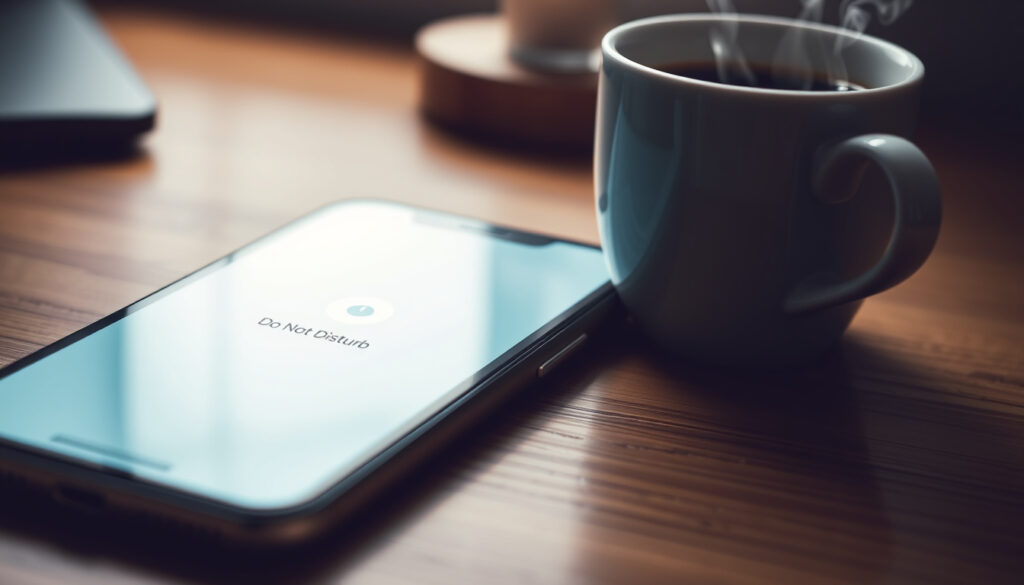
Do Not Disturb on iPhone: What It Does & How to Turn Off
You pick up your iPhone to check a message and realize you haven’t heard a buzz or ringtone all day. Do Not Disturb might be the reason, and this guide covers exactly what happens when it’s on, how calls and texts are handled, and why it sometimes activates on its own so you can take back control of your notifications.
iPhone models supporting Do Not Disturb: All iPhone models with iOS 15 or later ·
Default Do Not Disturb schedule length: Until turned off or set schedule ends ·
Calls that bypass Do Not Disturb: Favorites, Emergency Bypass contacts, repeated calls ·
Notifications hidden while Do Not Disturb is on: All notifications except alarms and allowed apps
Quick snapshot
- Do Not Disturb silences all incoming calls and notifications except those from allowed contacts (Apple Support)
- Calls from Favorites or with Emergency Bypass enabled will ring through (Apple iPhone Guide) (Apple Support)
- Do Not Disturb does not silence alarms (Apple iPhone Guide)
- Repeated calls from the same number within three minutes will bypass Do Not Disturb (Apple iPhone Guide) (Apple Support)
- Whether a caller can detect Do Not Disturb mode: No, there is no signal or tone (Apple Support Communities) (Apple Support Communities)
- Whether Do Not Disturb affects iMessage read receipts: No, read receipts are a separate setting (Apple Support Communities)
- Whether Smart Activation might activate Do Not Disturb based on app usage without user awareness: Apple says it learns from routines, but the exact triggers are not fully transparent to users (Apple Support). (Apple Support Communities)
- Whether Do Not Disturb completely disables vibrations for all apps: It silences sounds and most vibrations, but some apps with custom haptics may still vibrate depending on their settings (Apple Support). (Apple Support Communities)
- Do Not Disturb can activate automatically based on a schedule, location, or app usage (Apple Support)
- Smart Activation learns routines and turns Do Not Disturb on at certain times (Apple Support)
- Check Settings > Focus > Do Not Disturb to review schedules and allowed contacts (Apple Support)
- If Do Not Disturb won’t turn off, restart the iPhone or update iOS (Apple Support Communities)
Four key settings define how Do Not Disturb behaves, from who can reach you to when it turns on automatically.
| Setting | Value |
|---|---|
| Do Not Disturb blocks calls from | All contacts not in Favorites or without Emergency Bypass |
| Do Not Disturb blocks texts from | All contacts unless allowed via Focus exceptions |
| Caller’s experience | Phone rings as normal (no busy tone) unless sent to voicemail |
| Automatic activation triggers | Schedule, location, app usage, or driving |
What happens on iPhone when Do Not Disturb is on?
Notifications are silenced and hidden
- Do Not Disturb silences all incoming calls, alerts, and notifications — no sound, no vibration (Apple’s iPhone User Guide).
- Notifications still appear in Notification Center but are not shown on the lock screen or played audibly (Apple Support).
- Alarms, timers, and emergency alerts are not silenced (Apple iPhone Guide).
Calls and texts from certain contacts can still come through
- Users can configure exceptions for specific contacts or apps in Settings > Focus > Do Not Disturb > People (Apple’s Focus Guide).
- Favorites and Emergency Bypass contacts ring through without restriction (Apple iPhone Guide).
The implication: Do Not Disturb provides peace and quiet, but only if you configure your exceptions deliberately.
What happens when your phone is on Do Not Disturb and someone calls you?
Calls from Favorites or Emergency Bypass contacts may ring through
- When Do Not Disturb is on, calls from contacts not in Favorites or without Emergency Bypass go to voicemail (Apple Support).
- The phone does not ring or vibrate for silenced calls (Apple’s iPhone User Guide).
Repeated calls bypass Do Not Disturb
- If the same person calls twice within three minutes, the second call will ring through — an emergency feature (Apple iPhone Guide).
- There is no visual or audio indication to the caller that Do Not Disturb is active; they hear normal ringing (Apple Support Communities).
The caller never knows you’re in Do Not Disturb. That repeated-call feature is your only clue if someone is trying to reach you urgently.
The pattern: Repeated calls from the same number can override silence, serving as an emergency bypass for urgent situations.
How do I get my iPhone out of Do Not Disturb mode?
Turn off Do Not Disturb from Control Center
- Swipe down from the top-right corner to open Control Center (Apple Support).
- Tap the crescent moon icon (or the Focus button if another Focus is active) (Apple Support).
- When the icon dims and the label changes to “Focus,” Do Not Disturb is off (Apple Support).
Turn off Do Not Disturb in Settings
- Go to Settings > Focus > Do Not Disturb and toggle it off (Apple Support).
- If a schedule is active, disable or edit the schedule in Settings > Focus > Do Not Disturb > Add Schedule or tap the existing schedule (Apple Support).
- You can also ask Siri: “Turn off Do Not Disturb” (Apple Support).
If you rely on Control Center and the crescent moon icon is missing, you might be in a different Focus mode. Tap the Focus label to cycle through them.
The catch: If you can’t find the crescent moon, you might have a different Focus active — check the Control Center label.
Why is my iPhone suddenly on Do Not Disturb?
Scheduled Do Not Disturb activated automatically
- Do Not Disturb may turn on automatically if a schedule is set in Settings > Focus > Do Not Disturb > Add Schedule (Apple Support).
- Common triggers: a specific time range (e.g., 10 PM to 7 AM) or “While Driving” (Apple Support).
Smart Activation turned on based on location or app usage
- Smart Activation learns when to turn on Do Not Disturb based on location, app usage, or routine (Apple Support).
- Check if Do Not Disturb is scheduled during certain times or when the iPhone is locked (Apple Support).
- Disable schedules or Smart Activation in Settings > Focus > Do Not Disturb (Apple Support).
The pattern: Most unexpected activations trace back to a schedule you set once and forgot, or to Smart Activation learning your habits. Turning off all schedules and Smart Activation gives you full manual control.
Can people still text you on Do Not Disturb?
Texts are received but notifications are silenced
- Yes, people can still send texts when Do Not Disturb is on (Apple Support).
- The sender does not receive any notification that Do Not Disturb is active (Apple Support Communities).
- Incoming iMessages and SMS messages are delivered silently without sound or vibration (Apple’s iPhone User Guide).
- Messages appear in the Messages app but are not shown on the lock screen unless you pick up the phone (Apple Support).
Emergency Bypass contacts send notifications anyway
- If a contact has Emergency Bypass enabled, their texts will produce a sound and appear on the lock screen even during Do Not Disturb (Apple iPhone Guide).
- This is configured per contact in the Phone or Contacts app under Ringtone > Emergency Bypass (Apple iPhone Guide).
What this means: Texts are always received; only the notification sound and lock screen appearance are suppressed, so you can still see them when you open Messages.
How to fix common Do Not Disturb problems on iPhone
Do Not Disturb won’t turn off
- Check for active scheduled or smart activation in Settings > Focus > Do Not Disturb (Apple Support).
- Restart the iPhone or update to the latest iOS version if the issue persists (Apple Support Communities).
- If toggling the switch does nothing, force close the Settings app and try again (Apple Support Communities).
Do Not Disturb keeps turning on by itself
- Disable all schedules and Smart Activation in Settings > Focus > Do Not Disturb (Apple Support).
- Check if Do Not Disturb is mirrored from another device via iCloud — sign out of iCloud on the other device and test (Apple Support Communities).
- Update to the latest iOS to fix known glitches (Apple Support).
An iPhone that repeatedly enters Do Not Disturb on its own often has a hidden schedule synced from another Apple device. Signing out of iCloud on one device at a time isolates the culprit.
The pattern: If Do Not Disturb keeps turning on, it’s often a schedule synced from another device — sign out of iCloud on one device at a time to isolate the issue.
Confirmed facts and what remains unclear
Confirmed facts
- Do Not Disturb silences all incoming calls and notifications except those from allowed contacts (Apple Support).
- Calls from Favorites or with Emergency Bypass enabled will ring through (Apple iPhone Guide).
- Do Not Disturb does not silence alarms (Apple iPhone Guide).
- Repeated calls from the same number within three minutes will bypass Do Not Disturb (Apple iPhone Guide).
What’s unclear
- Whether a caller can detect Do Not Disturb mode: no signal or tone is sent (Apple Support Communities).
- Whether Do Not Disturb affects iMessage read receipts: it is a separate setting (Apple Support Communities).
- Whether Smart Activation might activate Do Not Disturb based on app usage without user awareness: Apple says it learns from routines, but the exact triggers are not fully transparent to users (Apple Support).
- Whether Do Not Disturb completely disables vibrations for all apps: It silences sounds and most vibrations, but some apps with custom haptics may still vibrate depending on their settings (Apple Support).
“Do Not Disturb is a Focus mode that silences calls, alerts, and notifications. You can turn it on from Control Center or set it to turn on automatically.”
— Apple Support (official documentation)
“I kept missing texts from my wife until I realized Do Not Disturb was turning on every evening because I had a schedule set months ago.”
— Apple Support Communities user (forum discussion)
The trade-off: Do Not Disturb gives you peace and quiet, but if you forget the schedule you set, it can accidentally isolate you at the worst times. For frequent travelers or parents expecting calls, keeping Smart Activation off and reviewing exceptions monthly can prevent missed communications.
support.apple.com, youtube.com, support.apple.com, support.apple.com, discussions.apple.com, discussions.apple.com, apple.stackexchange.com, facebook.com, discussions.apple.com
Frequently asked questions
Does Do Not Disturb block alarms on iPhone?
No, Do Not Disturb does not silence alarms, timers, or emergency alerts. These will sound normally even when Do Not Disturb is active (Apple iPhone Guide).
Can I schedule Do Not Disturb to turn on automatically at night?
Yes. Go to Settings > Focus > Do Not Disturb > Add Schedule, then choose a time range. You can also trigger it by location or when opening a specific app (Apple Support).
Will Do Not Disturb block calls from unknown numbers?
Yes, if the number is not in your Favorites or allowed list, calls from unknown numbers are sent to voicemail without ringing (Apple Support).
How do I allow certain contacts to reach me during Do Not Disturb?
Go to Settings > Focus > Do Not Disturb > People > Allow Notifications From and select your exceptions. You can add Favorites or custom groups (Apple’s Focus Guide).
Does Do Not Disturb affect WhatsApp messages and calls?
WhatsApp messages and calls are treated like any other notification. They are silenced unless you add WhatsApp to the Allowed Apps list in the Focus settings (Apple’s Focus Guide).
Can I use Do Not Disturb while driving?
Yes. Do Not Disturb While Driving is a separate Focus option that activates automatically when your iPhone detects driving motion or connects to car Bluetooth (Apple Support).
What’s the difference between Do Not Disturb and Silent mode?
Silent mode (the physical mute switch) only silences ringtones and alerts but does not block calls or notifications from appearing on the lock screen. Do Not Disturb hides all notifications and sends calls to voicemail unless exceptions are set (Apple iPhone Guide).
Does Do Not Disturb stop vibrations?
Yes, by default Do Not Disturb silences both sounds and vibrations for incoming notifications and calls. However, if you have Haptics enabled for supported apps, some vibrations may still occur depending on the app’s settings (Apple Support).
For iPhone users who rely on Do Not Disturb for focused work or sleep, the clearest takeaway is this: review your schedule and allowed contacts at least once a month. A quick check in Settings > Focus > Do Not Disturb can save you from accidentally silencing calls from your kids’s school, your ride‑share driver, or an important client. Manage your exceptions proactively, or risk missing what matters.
More related posts
 Nike Air Max 90 Guide: Design, Comfort & Where to Buy in Ireland
 ANZ Australia Receiving Money From Overseas – Process Explained
 5’2″ in cm – Exactly 157.48 cm Converted
 Rest Home Near Me: Costs, Options & How to Choose in Ireland
 Australia Social Media Ban: What’s Banned and How It Works
 Mardi Gras Queenstown 2025: Date, Theme, Lineup & More
 ENG-W vs SA-W T20 Semi-Final: England Win by 40 Runs
 How Much Fibre Per Day? UK & US Guidelines
